 Install for free
How to Search by Image on AliExpress: App, Desktop and Similar Products 2026


Searching on AliExpress is easy when you know the product name — but it gets tricky when you only have a photo. That’s where image search helps.
In this guide, you’ll find the same working methods AliExpress users rely on today: the camera icon inside the AliExpress app (photo or gallery), the “similar products” tool on a listing, Google Images on desktop, and browser extensions that send an image to AliExpress search.
Quick answer
To search AliExpress by image, use the camera icon in the AliExpress mobile app, upload a saved photo from your gallery, or use Similar items inside a product listing. On desktop, use Google Lens or a trusted browser extension. After you find matches, compare seller rating, real buyer photos, shipping, reviews and price history before ordering.
When image search is useful
- You want to find the exact same item. For example, if you have seen something from a friend, in a shop or on the street, and you really like its model or colour. But you do not know where you can buy it. Searching by image or photo on Aliexpress can help you find exactly the product you are looking for.
- You’re trying to identify a brand. If you only have a logo or a recognizable symbol, you can upload that image and find items that match that brand style or branding.
- You need to find the budget version. Also, a picture search can be useful if you want to find a similar style or a more affordable alternative but are not willing to pay for the original (avoid counterfeit or trademark-infringing products. Use image search to find similar styles, not fake branded items). You can upload an image or photo of the original product, and the AliExpress system will offer you a lot of goods that look similar, but are much cheaper. By the way, it is even more important to find a reliable seller and great discounts on AliExpress. The free AliHelper extension will help you with this.
- You want to compare prices quickly. Upload a photo of the item and compare multiple visually similar listings. This makes it easier to spot the best deal.
Improve accuracy (best practices)
Use these rules to get better matches:
- Crop to the product (remove hands, faces, room background).
- Prefer front-facing photos over angled shots.
- Use high-resolution images (avoid blurry screenshots).
- If the item has a logo or pattern, keep it visible.
- For clothing, search with photos showing the full silhouette (not a close-up of fabric).
- Try 2–3 different photos of the same item (results often change).
- After you find a close match, refine by filters (price range, shipping, rating).
Search by image in the AliExpress app (camera)
This is the fastest method when you have a real photo of the product (for example, something you saw in a store, at home, or in a video screenshot that’s clear).
Steps (take a photo)
- Open the AliExpress app on your phone.
- Tap the search bar.
- Find and tap the camera icon near the search field.
- Choose Camera mode.
- Take a photo of the product (try to keep it centered and in focus).
- Review the search results and open listings that look like your item.
Tip: If the app shows multiple result tabs (like similar items, recommended items, etc.), check more than one tab. The best match isn’t always the first result.
What results you’ll get
- Mostly visually similar listings on AliExpress
- Often multiple variants: different colors, sizes, bundles, and near-duplicates
- Not guaranteed to find the exact same seller/item, especially for generic products
Search by image from your gallery
Gallery upload is perfect when you already have an image:
- a screenshot from Instagram / TikTok / YouTube
- a product photo from a friend
- a saved picture from another store
Steps (upload a saved image or screenshot)
- Open the AliExpress app.
- Tap the search bar.
- Tap the camera icon.
- Switch to Gallery (or Upload) mode.
- Select your image.
- Crop the image if AliExpress offers a crop tool (focus on the product).
- Review the results and open the best-looking matches.
When gallery upload works best
- Clear product photos (front view, minimal background)
- Images where the product occupies most of the frame
- Official product photos (they usually match better than messy screenshots)
Find alternatives using “Similar items”
If you already found one listing that is close, you can use Similar items to discover:
- cheaper versions
- the same product from other sellers
- slightly different designs, bundles, or sizes
How “Similar items” differs from image search
- Search by image starts from your photo and tries to match the object in it.
- Similar items starts from a listing and finds look-alikes based on that product.
Steps (inside a product listing)
- Open an AliExpress product listing in the app.
- Find the button/link called Similar items (naming may vary slightly by region/version).
- Browse visually similar products.
- Compare price, rating, reviews, photos, and shipping.
Best use cases
- You want “same vibe” items (style match) rather than perfect duplication
- You want alternatives (not necessarily the exact same listing)
- You want to compare sellers and prices quickly
Desktop methods: reverse image search
Using Google search engine
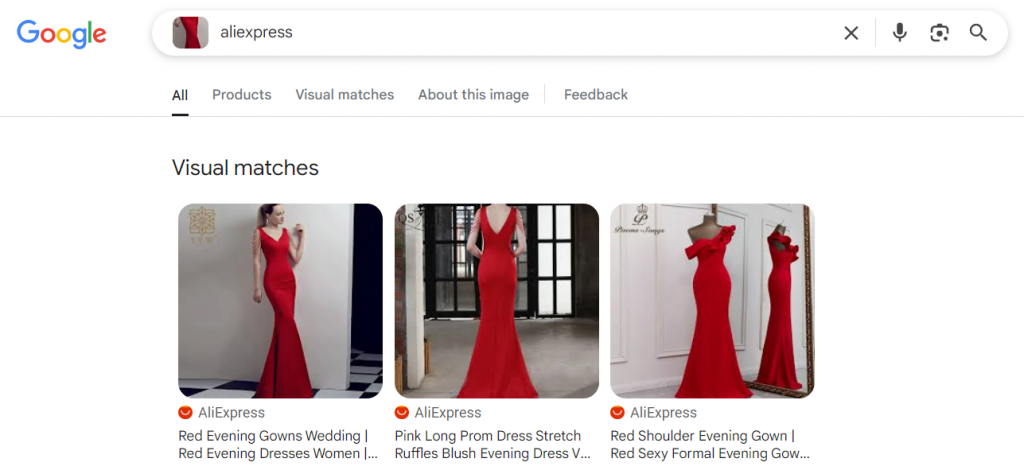
Previously, you could limit Google image results to AliExpress using a site filter (for example, site:aliexpress.com). Google has since changed the image search UI, so this method is less reliable now.
1. On any page of the search engine, click on a picture with a camera;

2. Upload an image of the desired item by dragging it into the opened window, from the clipboard (Ctrl V), from your hard drive or from a link;
3. Type “aliexpress” in the search box.
Using browser extensions
There is a wide range of free extensions available in browser plugin shops such as Chrome Store, Mozilla Addons and Microsoft Edge Addons that are designed specifically for searching by photo or image on Aliexpress. These extensions are handy tools that integrate into your browser and allow you to search directly while surfing the web.
Safety checklist before installing an extension:
- If in doubt, use Google search instead.
- Prefer well-known stores (Chrome Web Store / Firefox Add-ons / Edge Add-ons).
- Check the number of users, recent reviews, and update date.
- Avoid extensions asking for unnecessary permissions (for example, access to all sites if it’s not needed).
Such extensions are especially useful if you often shop on Aliexpress and want to simplify the process of finding the right products. Installing and using these tools is easy, and they can significantly reduce the time spent on searching, as well as increase the efficiency of your online shopping.
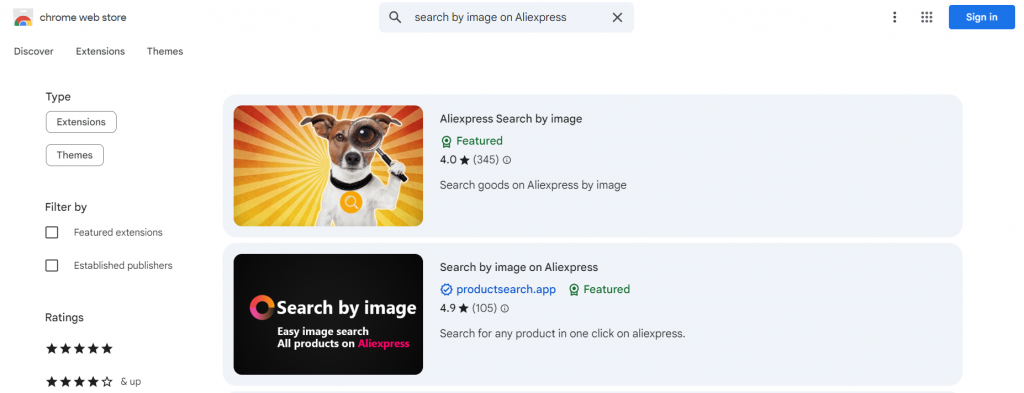
To find the programme you need, just enter the appropriate query in the search box, for example, “search by image Aliexpress” and choose the extension that appeals to you the most for one reason or another. On the page of each plugin you will find a photo, picture, video or text guide that describes how to use it.
Key facts
- AliExpress app → supports → image search (camera + gallery upload).
- A clean product photo → improves → match accuracy.
- Cropping the photo to the item → reduces → irrelevant results.
- “Similar items” → finds → look-alike products (not always the exact same listing).
- Desktop AliExpress website → usually lacks → a universal image-search button (most users rely on reverse image search tools).
- Different photos → produce → different results (angle, lighting, background, logo visibility).
Which method should you use?
| Method | Best for | What you get | Accuracy | Speed |
|---|---|---|---|---|
| AliExpress app: Camera | Finding a product from a real photo | Similar listings on AliExpress | High (if photo is clear) | Fast |
| AliExpress app: Gallery upload | Searching using screenshots or saved images | Similar listings on AliExpress | Medium–High | Fast |
| “Similar items” on a product page | Finding cheaper/close alternatives | Look-alike products | Medium | Very fast |
| Desktop: Reverse image search | Searching from a laptop/PC | Matches across the web (then open AliExpress) | Medium | Medium |
| Browser extensions (desktop) | Searching directly on AliExpress pages in a browser | Image search button on product pages + quick jump to similar listings | Medium–High (depends on extension) | Fast |
Exact Same Product or Just Similar? How to Check
| Что проверить | Почему важно |
|---|---|
| Product photos | У одинаковых товаров часто совпадают детали, комплектация, углы фото |
| Specifications | Размер, материал, мощность, модель, цвет, комплект |
| Buyer photos | Реальные фото помогают понять, совпадает ли товар |
| Reviews | В отзывах часто пишут, если товар отличается от фото |
| Seller rating | У одинакового товара продавцы могут сильно отличаться по надёжности |
| Shipping terms | Дешёвая карточка может стать невыгодной из-за доставки |
| Price history | “Скидка” может быть искусственной |
Troubleshooting
I can’t find the camera icon in the AliExpress app
- Update AliExpress to the latest version.
- Check the search screen: the camera icon is usually near the search input.
- Force-close the app and reopen it.
- If your app looks different, switch region/language inside the app and try again.
The results are irrelevant
- Crop the image to the product only.
- Remove backgrounds and text overlays from screenshots.
- Try a different photo (angle/light/background changes matter).
- Use a photo where the product fills most of the frame.
I want the exact same item, not just similar products
- Use the cleanest product photo possible (official listing photos work best).
- Try multiple images and compare listings by photos, specs, and reviews.
- Use “Similar items” for alternatives, but rely on camera/gallery search for closer matches.
Why does AliExpress image search show unrelated products?
- the product is too small in the image;
- there is too much background;
- the photo is blurry;
- there are several products in one image;
- the item is too generic;
- the photo is heavily edited;
- the logo or an important detail is cropped out.
Conclusion
If you’re on your phone, the fastest option is the AliExpress app: use the camera icon (live photo or gallery), or open a listing and tap the magnifying glass to find similar items.
On desktop, Google Images can help when AliExpress results are too broad. And if you do this regularly, a browser extension can make the process faster.


If images aren’t opening on AliExpress, the problem may be related to your internet connection or speed. Sometimes this can be due to browser settings or ad blockers, which may block certain elements of the page. It is also worth ensuring that you have the latest browser and operating system updates installed, as well as checking your security settings and malware protection. If the problem persists, try clearing your browser’s cache and cookies or try using a different browser to access AliExpress.
First, try a different photo (brighter, sharper, and tightly cropped). If that doesn’t help, switch to another method from this guide (for example, Google Images on desktop or a browser extension).
Results depend on the photo. Clear images with a simple background usually work well. Blurry photos or pictures with lots of extra objects often return only “similar” items.
Not always directly on the AliExpress website. Most users do it via reverse image search tools on desktop, then open matching listings on AliExpress.
It’s usually placed near the search bar. If you don’t see it, update the app and recheck the search screen.
Search by image tries to match what’s in your photo. “Similar items” finds look-alikes based on one product listing and is best for alternatives.
Small changes in cropping, lighting, and background can change the visual match. Try 2–3 photos and crop to the product.
Use photos that show the full silhouette, crop out backgrounds, and try multiple angles. Then refine results with filters like price, rating, and shipping.
Be cautious. Install only well-known extensions, check reviews, and avoid tools that request unnecessary permissions.